1. Finding your username
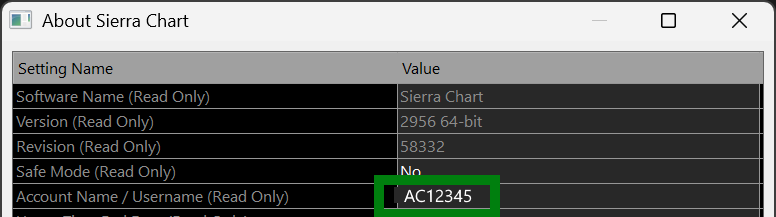
Use the Help → About menu in Sierra Chart to find your account name. Enter that exact username above when you enable access.

StarPenta
Free studies ship as one StarPenta custom study set. Enable sends a confirmation link to your email; disable uses your Sierra username and passphrase.
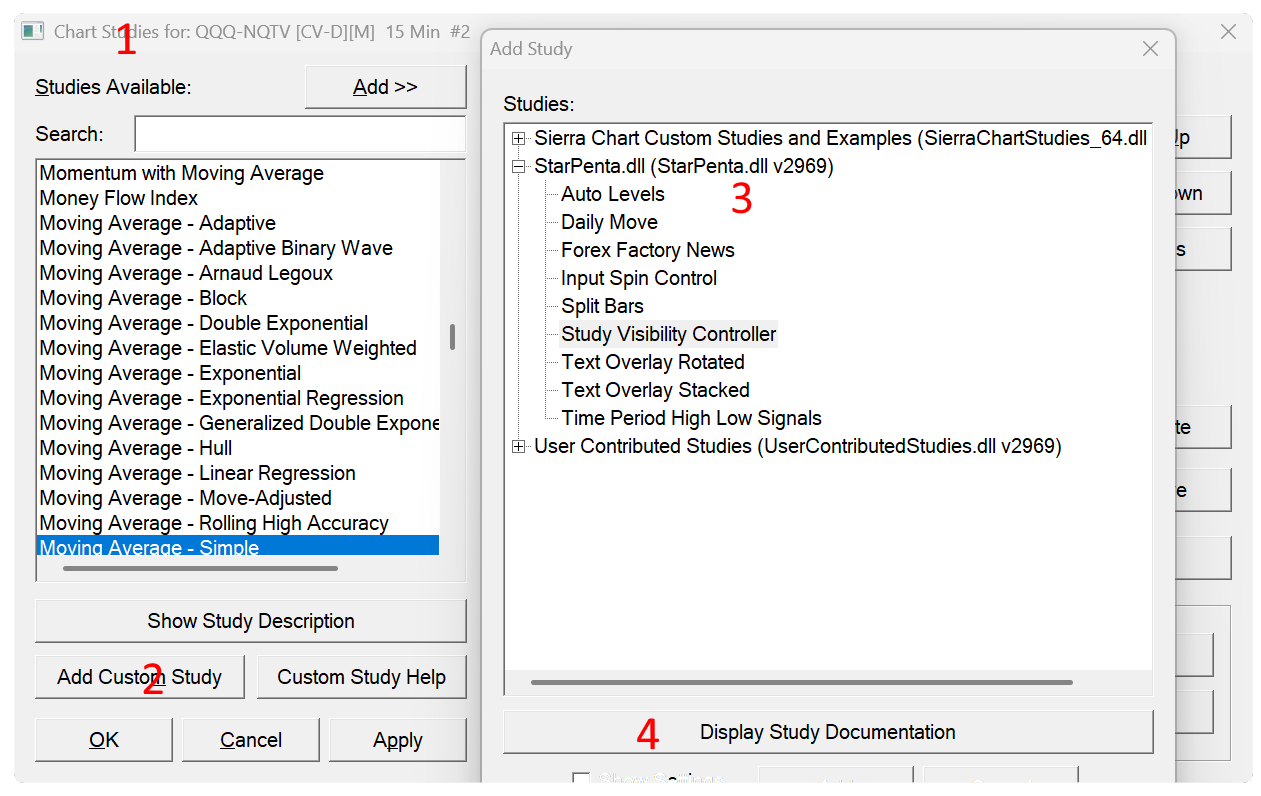
After you confirm from email, StarPenta asks Sierra Chart to authorize your username. That is usually quick. Then restart Sierra Chart so free studies show under Analysis → Studies → Add Custom Study.
Enter your Sierra Chart username, email, and a passphrase. We email a one-time confirmation link (expires in 24 hours). Do not use your Sierra password as your passphrase.
Use the Help → About menu in Sierra Chart to find your account name. Enter that exact username above when you enable access.
After you confirm access, restart Sierra Chart so it can download StarPenta. Then open Analysis → Studies (F6), choose Add Custom Study, and select the free StarPenta studies. Study documentation is always available from the Display Study Documentation button and the Description button from the study settings dialog.