
Studies · Sierra Chart
Widgets and Utilities
Studies to manage or control Sierra Chart studies.
Overview
Input Spin Control
In short, this study gives you a spin control where you can increase/decrease a study input
without having to open the settings dialog.
Very convenient for tuning the input value for any study.
Works on whole number integers and floating point values.
This study supports mouse click to select, move, and mouse click to set the new location.
You can also press Escape to cancel the move, and return the study to its original location.
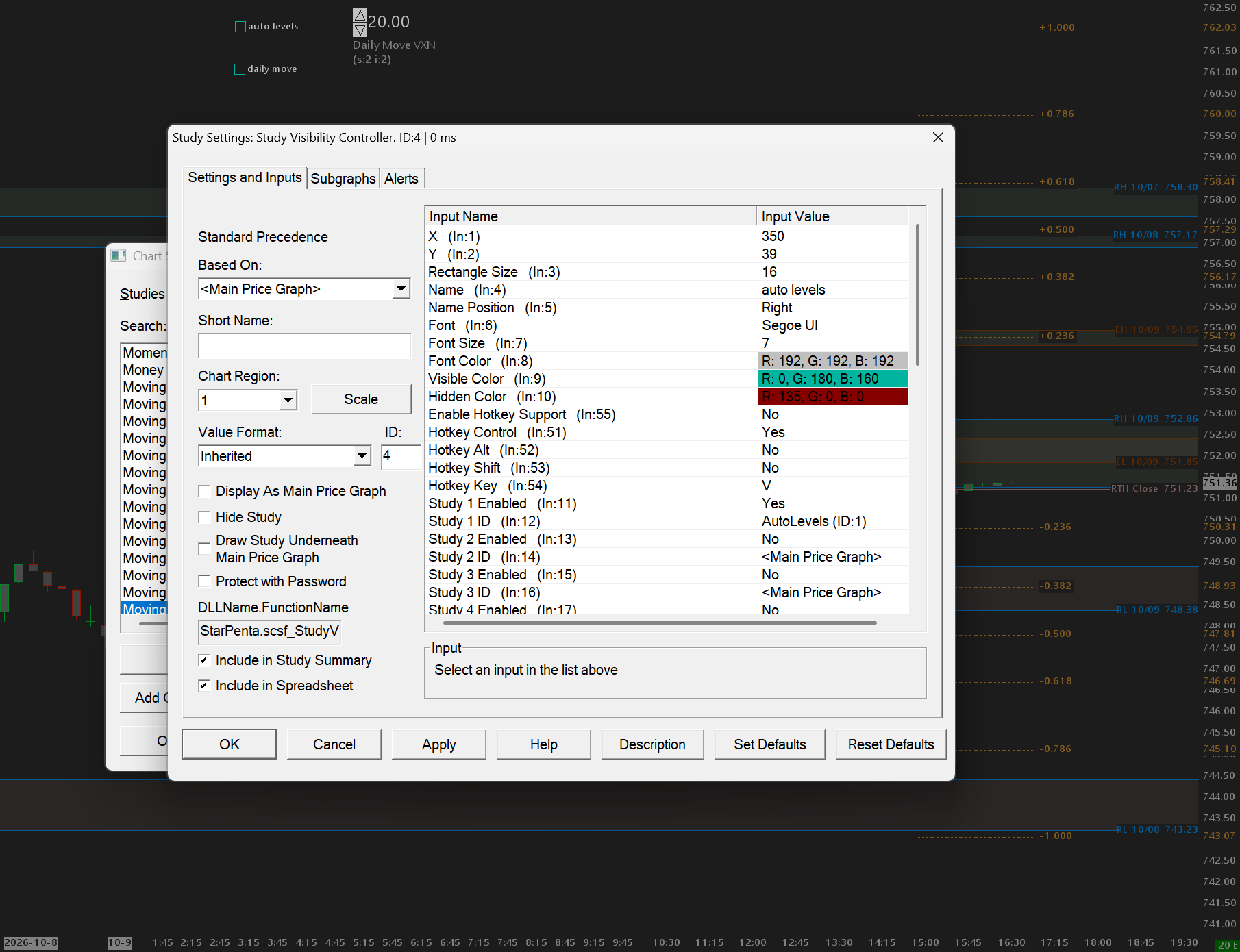
Study Visibility Controller
This study allows you to show or hide up to 20 studies with a click or a keyboard shortcut.
This study supports mouse click to select, move, and mouse click to set the new location.
You can also press Escape to cancel the move, and return the study to its original location.
Help
Help for this study, and all StarPenta studies, is also available from the F6 Studies dialog and the Description button on the Settings page for each study.
Input Spin Control
| Input Name | Input Description |
|---|---|
| X Position | Horizontal pixel offset from the left of the study region. Updated when you drag the control. |
| Y Position | Vertical pixel offset from the top of the study region. Updated when you drag the control. |
| Study ID | Study on this chart whose input the spin control edits. |
| Input ID | 1-based input number on the target study. The first input is 1. |
| Small Change | Amount applied on click with no modifier key. |
| Medium Change | Amount applied on click while Control is held. |
| Up/Down Control Size | Pixel size of the up and down buttons. |
| Value Font Size | Point size for the current value text. |
| Legend Font Size | Point size for the study name and (s:i) legend. |
| Control Background | Fill color of the up and down buttons. |
| Control Foreground | Triangle and outline color of the up and down buttons. |
| Value Foreground | Color of the current value text. |
| Legend Foreground | Color of the legend text. |
| Min Limit | Lowest value the control will write to the target input. |
| Max Limit | Highest value the control will write to the target input. |
| Large Change | Amount applied on click while Shift is held. |
Study Visibility Controller
| Input Name | Input Description |
|---|---|
| X | Horizontal pixel offset from the left of the study region. Updated when you drag the label. |
| Y | Vertical pixel offset from the top of the study region. Updated when you drag the label. |
| Rectangle Size | Pixel size of the visibility square. |
| Name | Label next to the square. Leave blank to use SVC[study id]. |
| Name Position | Where the label sits relative to the square. Top/Bottom centers the square over or under the text. |
| Font | Font face for the label. |
| Font Size | Pixel height for the label font. |
| Font Color | Label text color. |
| Visible Color | Square color when tracked studies are treated as visible (empty square). |
| Hidden Color | Square and X color when tracked studies are treated as hidden. |
| Study 1 Enabled | Include this study ID in show/hide and sync. |
| Study 1 ID | Chart study instance ID to control. 0 is ignored. |
| Study 2 Enabled | Include this study ID in show/hide and sync. |
| Study 2 ID | Chart study instance ID to control. 0 is ignored. |
| Study 3 Enabled | Include this study ID in show/hide and sync. |
| Study 3 ID | Chart study instance ID to control. 0 is ignored. |
| Study 4 Enabled | Include this study ID in show/hide and sync. |
| Study 4 ID | Chart study instance ID to control. 0 is ignored. |
| Study 5 Enabled | Include this study ID in show/hide and sync. |
| Study 5 ID | Chart study instance ID to control. 0 is ignored. |
| Study 6 Enabled | Include this study ID in show/hide and sync. |
| Study 6 ID | Chart study instance ID to control. 0 is ignored. |
| Study 7 Enabled | Include this study ID in show/hide and sync. |
| Study 7 ID | Chart study instance ID to control. 0 is ignored. |
| Study 8 Enabled | Include this study ID in show/hide and sync. |
| Study 8 ID | Chart study instance ID to control. 0 is ignored. |
| Study 9 Enabled | Include this study ID in show/hide and sync. |
| Study 9 ID | Chart study instance ID to control. 0 is ignored. |
| Study 10 Enabled | Include this study ID in show/hide and sync. |
| Study 10 ID | Chart study instance ID to control. 0 is ignored. |
| Study 11 Enabled | Include this study ID in show/hide and sync. |
| Study 11 ID | Chart study instance ID to control. 0 is ignored. |
| Study 12 Enabled | Include this study ID in show/hide and sync. |
| Study 12 ID | Chart study instance ID to control. 0 is ignored. |
| Study 13 Enabled | Include this study ID in show/hide and sync. |
| Study 13 ID | Chart study instance ID to control. 0 is ignored. |
| Study 14 Enabled | Include this study ID in show/hide and sync. |
| Study 14 ID | Chart study instance ID to control. 0 is ignored. |
| Study 15 Enabled | Include this study ID in show/hide and sync. |
| Study 15 ID | Chart study instance ID to control. 0 is ignored. |
| Study 16 Enabled | Include this study ID in show/hide and sync. |
| Study 16 ID | Chart study instance ID to control. 0 is ignored. |
| Study 17 Enabled | Include this study ID in show/hide and sync. |
| Study 17 ID | Chart study instance ID to control. 0 is ignored. |
| Study 18 Enabled | Include this study ID in show/hide and sync. |
| Study 18 ID | Chart study instance ID to control. 0 is ignored. |
| Study 19 Enabled | Include this study ID in show/hide and sync. |
| Study 19 ID | Chart study instance ID to control. 0 is ignored. |
| Study 20 Enabled | Include this study ID in show/hide and sync. |
| Study 20 ID | Chart study instance ID to control. 0 is ignored. |
| Hotkey Control | When Yes, Control must be held for the hotkey. When No, Control must not be held. Combined with Alt, Shift, and Hotkey Key. Used only when Enable Hotkey Support is Yes. |
| Hotkey Alt | When Yes, Alt must be held for the hotkey. When No, Alt must not be held. |
| Hotkey Shift | When Yes, Shift must be held for the hotkey. When No, Shift must not be held. |
| Hotkey Key | Letter key (A–Z) for the shortcut. Fires once on key-up after a matching key-down with the modifier inputs. Same action as clicking the square (toggle show/hide of tracked studies). Chart must have focus. Avoid letters already used by Sierra global shortcuts. |
| Enable Hotkey Support | When Yes, the Control/Alt/Shift + letter hotkey can toggle tracked studies. When No, keyboard shortcuts for this study are ignored (mouse click still works). |